Guide to Using Cline with Daya
Cline is a collaborative programming agent for complex tasks. By integrating with Daya, you can access more powerful models to enhance development efficiency.
Compatibility Note
Daya fully supports the OpenAI API protocol and can be used with simple configuration.
Note that the OpenAI protocol base_url is "https://api.dayaai.com/api/v1".
Installing Cline
Cline supports multiple development tools such as Visual Studio Code, JetBrains IDEs, etc. You can choose the corresponding installation method based on your tools. For details, please refer to Cline's official documentation.
Reference
Configuring Cline
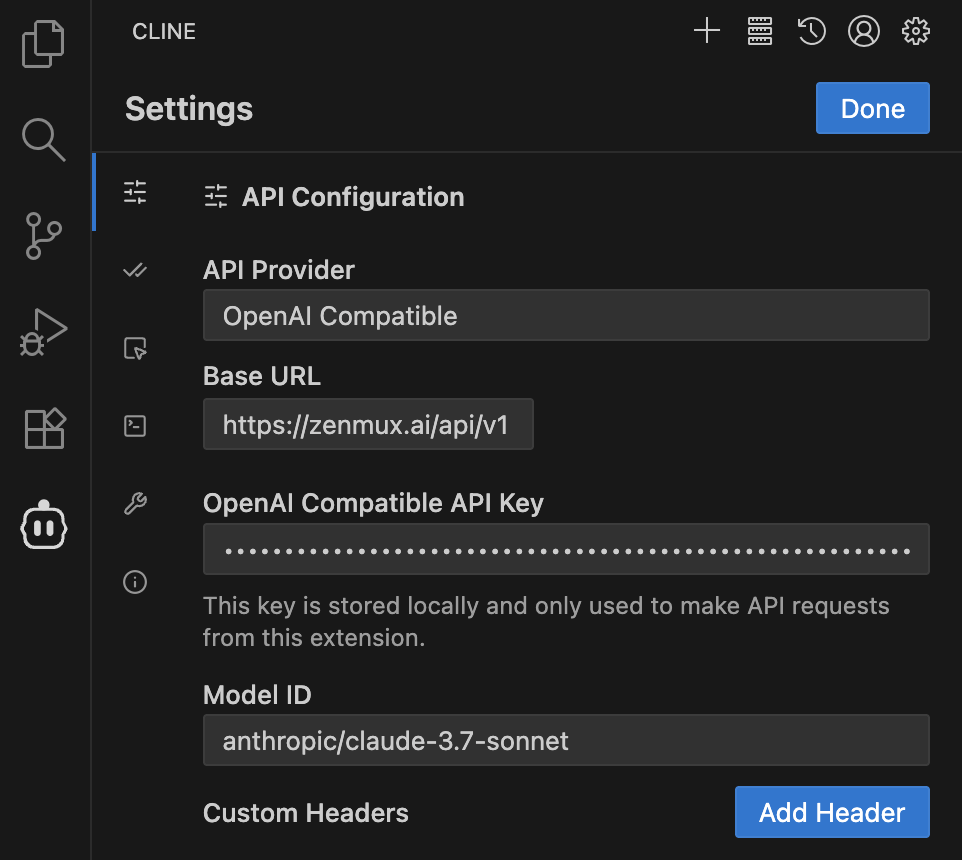
- Click the Cline icon on the left side of VSCode to open the Cline panel.
- Click the settings icon ⚙️ in the top right corner of the panel.
- In the API Configuration tab:
- Select OpenAI Compatible for API Provider
- Enter https://api.dayaai.com/api/v1 in Base URL
- Enter your Daya API Key in OpenAI Compatible API Key
- Enter the Daya model slug in Model ID, such as anthropic/claude-3.7-sonnet
- Click the Done button in the top right corner to complete the configuration.
Getting Started
After configuration is complete, you can start using Cline. Daya provides rich model support for Cline. You can select the desired model from our official model list and enter it in the Model ID field.

Troubleshooting
Common Issues
API Key Error
Issue: API Key reported as invalid or unauthorized
Solution:
- Verify that the Daya API Key you entered is correct
- Confirm the API Key is active and has sufficient balance
- Check that the API Key format starts with
sk-ai-v1-
Contact Us
If you encounter any issues while using the platform or have suggestions and feedback, please reach out via:
- Customer Group: We strongly recommend scanning the QR code on the dayaai.com homepage to join the group, so you can report issues and communicate with us promptly.
- WeChat Support: dayaai_com
- Technical Support Email: cs@dayaai.com