Sider Integration Guide
Sider is a powerful browser AI assistant extension that provides convenient AI services in a sidebar. It supports multiple AI capabilities, including writing, reading, chatting about any topic, and even generating content summaries. By configuring Daya, you can access a broader selection of models beyond the base models provided by Sider.
Configuration Steps
1. Get a Daya API Key
Go to the Daya Console to create and retrieve your API Key.
2. Install the Sider Extension
- Search for "Sider" in your browser’s extension store
- Install and enable the extension
- Open the extension’s Options page
3. Configure the OpenAI Service
Configuration Notes
You only need to configure OpenAI to unlock all Daya models.
In Sider settings:
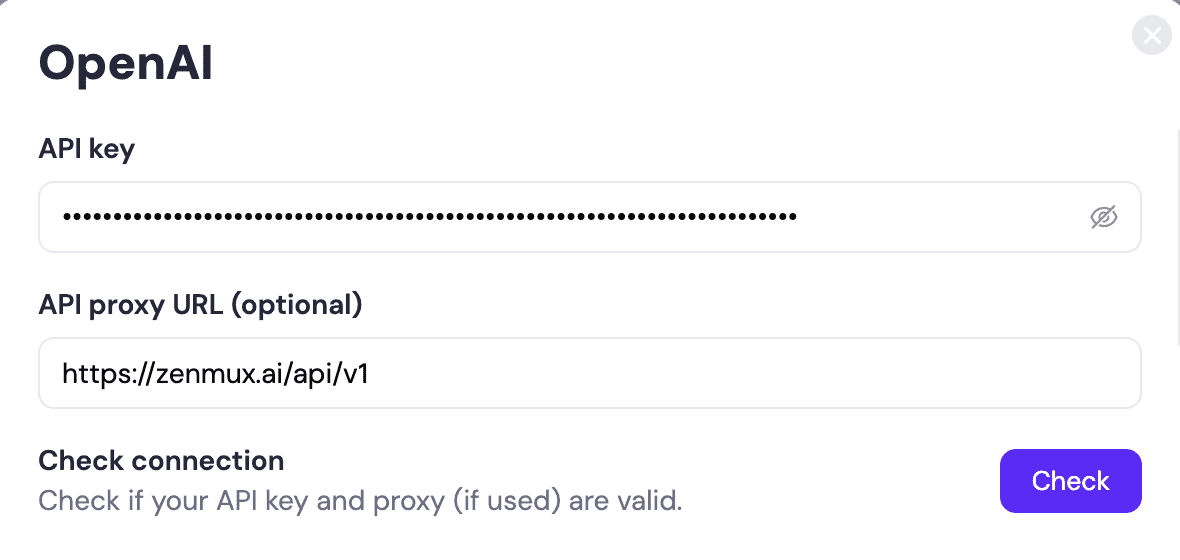
- Select Custom Key: General -> AI Access -> Service Provider -> [Sider -> Custom API Key]
- Select Service Provider: choose
OpenAI, then click Settings - Set Key: enter your API Key
Important
Please ensure you select Daya as your API provider, rather than other providers.
- Set API Base URL:
https://api.dayaai.com/api/v1 - Check Connection: click “Check” After a few seconds, when “Connection successful” appears, the configuration is complete.
- Usage: In Sider’s model list, select the model you need.
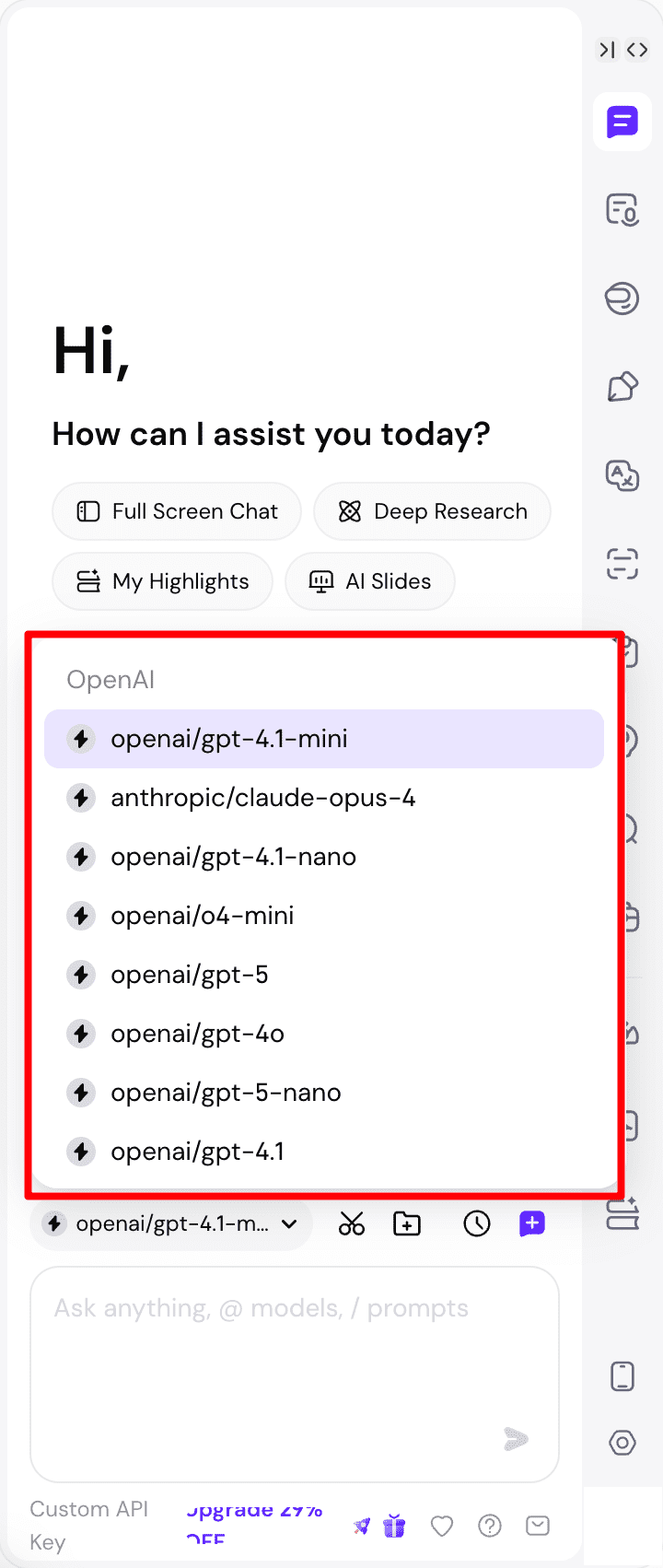
4. Supported Models
Daya provides a wide range of models for Sider. Check the Daya Model List to see all available models.
Troubleshooting
Common Issues
API Key Error
Problem: Connection failed. Please check your API key and proxy settings.
Solution:
- Check whether the Daya API Key in your environment variables is correct
- Ensure the API Key is activated and has sufficient balance
- Verify the API Key format starts with
sk-ai-v1-
Proxy URL Misconfiguration
Problem: Connection failed. Please check your API key and proxy settings.
Recommendation: We recommend selecting OpenAI. Once configured successfully, you can access all models provided by Daya without configuring other models separately in Sider.
Solution:
- Confirm that
OpenAIis selected as the service provider - Verify the URL is:
https://api.dayaai.com/api/v1
Other model connections:
We also support connecting to our model service in Sider by configuring certain other model providers. The result is identical to connecting via OpenAI. You need to modify the following settings:
| Model | API Proxy URL |
|---|---|
| DeepSeek | https://api.dayaai.com/api/v1 |
| Groq | https://api.dayaai.com/api/v1 |
| Google (Gemini) | https://api.dayaai.com/api/v1 |
| Anthropic (Claude) | https://dayaai.com/api |
Model List Missing or Incomplete
Problem: The complete Daya model list is not visible in Sider.
Solution:
- Re-save the API configuration in Sider settings
- Click “Update list” on the right side of the model list to refresh
- Try clicking the “+” button on the right to add models supported by Daya
- Check the Daya Console to confirm the API Key’s permissions are valid
- Contact Daya to confirm service status
Models
View all available models via the Daya Model List
Contact Us
If you encounter any issues while using the platform or have suggestions and feedback, please reach out via:
- Customer Group: We strongly recommend scanning the QR code on the dayaai.com homepage to join the group, so you can report issues and communicate with us promptly.
- WeChat Support: dayaai_com
- Technical Support Email: cs@dayaai.com